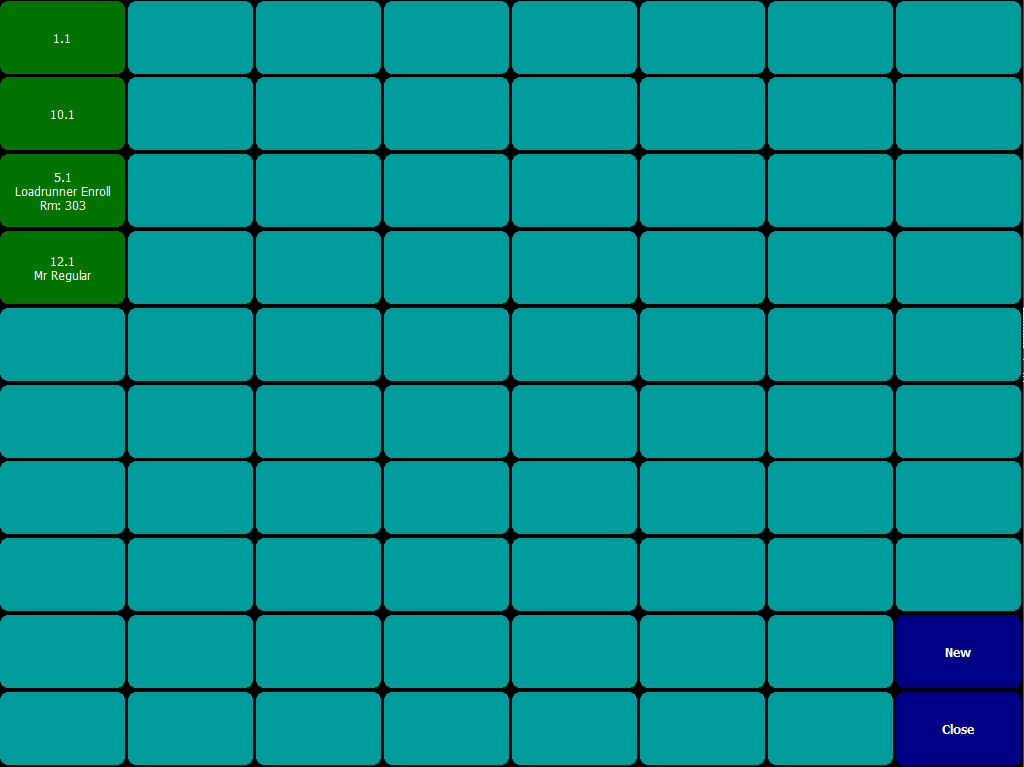
Please note that the terminals are configured by an the Amadeus - PM PRO | POS+ Implementation Specialist.
Do not change any setting without consulting the Amadeus - PM PRO | POS+ Support. The terminals may cease to function!
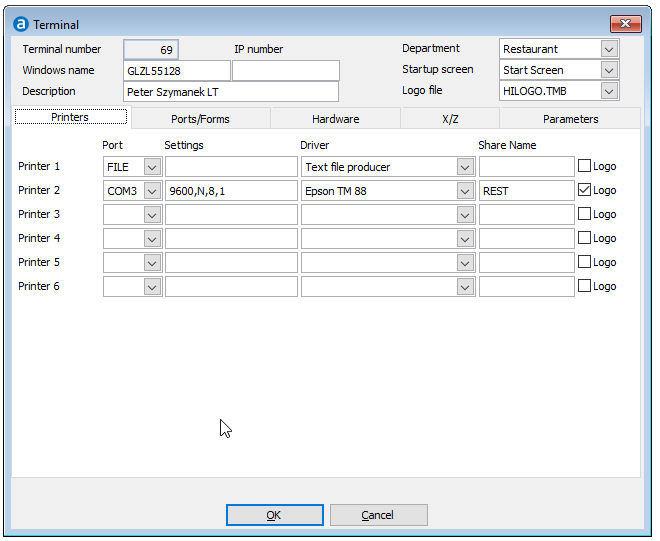
Terminal number
Number to identify the terminal.
Windows name
Name of the workstation. Windows names in upper and lower cases may cause problems.
Description
Decription of the terminal. Example: 'Bar', 'Restaurant' or 'F&B Back Office'
IP number
IP network address for handhelds only!
Department
Select default department for this terminal.
Start up screen
Select the start up screen for this terminal. Bar and Room Service may have different start up screens due to different requirements.
Logo file
Logo to be printed on any checks for this terminal. Only possible with a thermo printer.
It is possible to define up to six printers per terminal.
Port
Port of the defined printer. Possible COM1 to COM8, LPT1 to LPT3, FILE, WIN1 to WIN6.
COM and LPT is used for direct connection to the terminal. These ports may not be used by a printer installed under Windows.
FILE will cause the output to be redirected into a file.
WIN can be used to use a printer installed under Windows (for example connected with USB).
Then the Windows printer MUST use the Generic / Text only printer driver.
The correct driver must then be selected in the terminal Driver field!
Do not use the printer driver under Windows and select Text file producer in the Driver field, this will not work!
Settings
In case of a com-port usually it is 9600,N,8,1, but it may differ speed wise from printer to printer.
If WINx is used you can enter the local printer name (It is easier to rename it to BAR or REST) or the shared printer path: \\WORKSTATION_NAME\PRINTER_SHARE_NAME
Driver
Select the driver of the printer. The correct printer has to be selected, otherwise the tickets and checks are not cut correctly or the print may be garbled or upside down.
Share name
If a printer is used by several terminals it can get a 'Share name' (create spooler directory: yes).
Once the spooler directory has been created, this printer can be addressed from the other terminals.
(For example: the Restaurant gets all beverages from the Bar. Then the waiter in the restaurant can post and the tickets will be printed directly at the Bar terminal.)
Logo
This defines whether the printer is able to print logo's on the checks. Only for thermo printers.
It is possible to address up to nine printers per terminal.
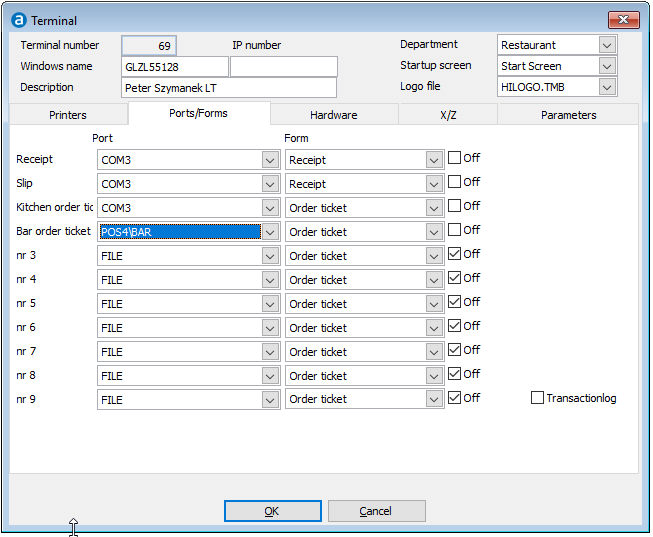
Printer names
These are defined in Settings Printer names. It is possible to have two different print forms: Receipt and Slip.
If different print forms are set up (often one without VAT for room charge = Slip, and one with VAT for all other payments = Receipt).
Please note that the different print forms cannot be addressed automatically, but has to be selected from the choice menu (Parameters tab in terminals).
Port
Select the port where this is supposed to print to.
Form
Select the Print form to be used for this printer. Several print forms can be created, also for tickets: thermo and pin printers have a different printing range.
Off
With this the printer can be switched off.
Transaction log
Special feature: the transaction log can be transferred to a com-port to be transferred to a ccv system.
Then the feed can be shown on the video system.
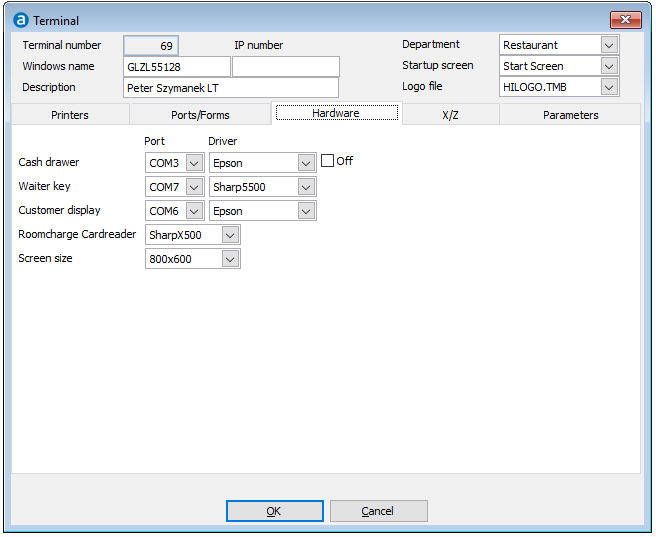
Cash drawer
Here a cash drawer can be set up. Please note that Epson cash drawers are ALWAYS connected to a printer.
Possible cash drawers: Epson, NCR, IBM, SharpX500. With 'Off' the drawer can be deactivated.
Waiter key
Here the waiter key is defined. Possible keys: Dallas, SwipeCard, SharpClc, Sharp5500, 4POS.
Customer display
Here the customer display can be defined. Possible displays: Epson, IBM.
Room charge card reader
Here the room charge card reader can be defined. Possible reader: Sharpx500
Screen size
Here the screen resolution is selected.
Possible resolutions:600x480, 800x600, 1024x768.
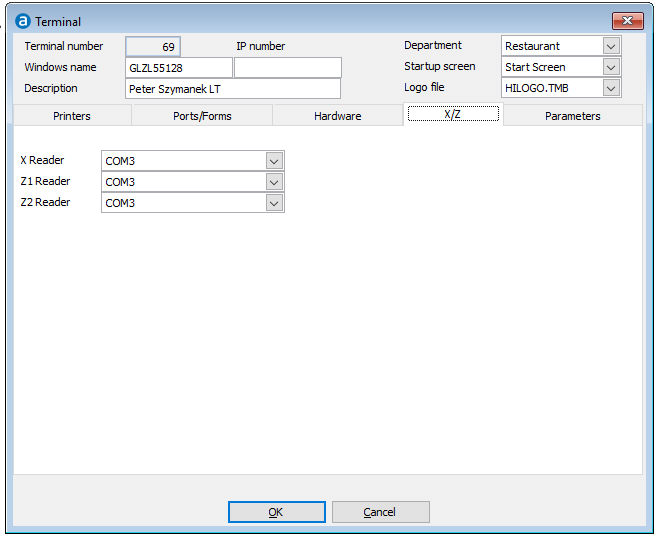
X Reader
Port where the X reader is printed.
Z1 Reader
Port where the Z1 reader is printed.
Z2 Reader
Port where the Z2 reader is printed.
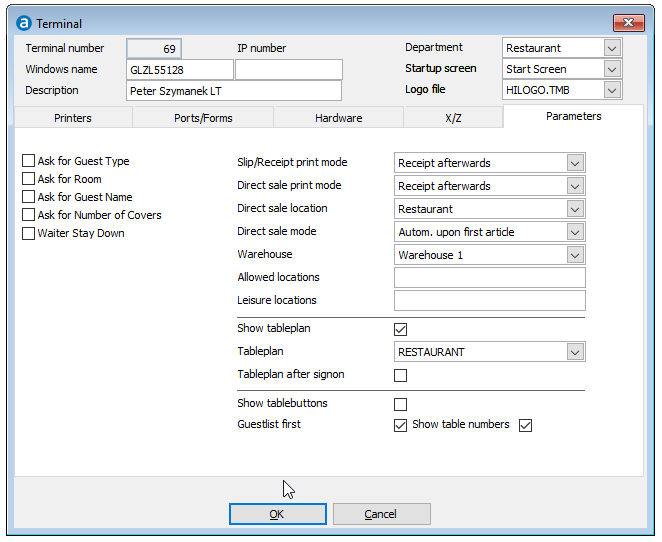
Ask for guest type
If activated the waiter will be asked to select a guest type when opening a new table.
Ask for Room
If activated the waiter will be asked to select a room number when opening a new table.
Ask for Guest Name
If activated the waiter will be asked to enter a guest name when opening a new table.
Ask for Number of Covers
If activated the waiter will be asked to enter the number of covers when opening a new table.
Waiter stay down
If this is activated the waiter does not have to log on all the time but stays logged on.
A key has to be created to log the waiter off at the end of the shift.
Slip/Receipt print mode
Select how checks on tables are to be printed.
Options: Slip before, Receipt before, Dialog before, Slip afterwards, Receipt afterwards, Dialog afterwards.
Direct Sale print mode
Select how checks from Direct Sales are to be printed.
Options: Slip afterwards, Receipt afterwards, Dialog afterwards.
Direct sale location
Select the Direct Sale location from the created locations.
Direct sale mode
Select the direct sale mode. Possible modes: Manual, Automatic upon first article, Automatic after signon.
Warehouse
Select the warehouse where the stock is deducted when sold from this terminal.
Allowed locations
If this terminal is only allowed to access certain locations, enter the numbers of the allowed locations here, separated by commas.
Leisure locations
If connected to the leisure module of Amadeus - PM PRO the leisure locations are entered here, separated by commas.
Show table plan
Activate if table plans are used.
Table plan
Select the table plan to be opened.
Table plan after signon
If activated the table plan is automatically opened when a waiter signs on.
Show table buttons
This displays the tables graphically without having to create a table plan.
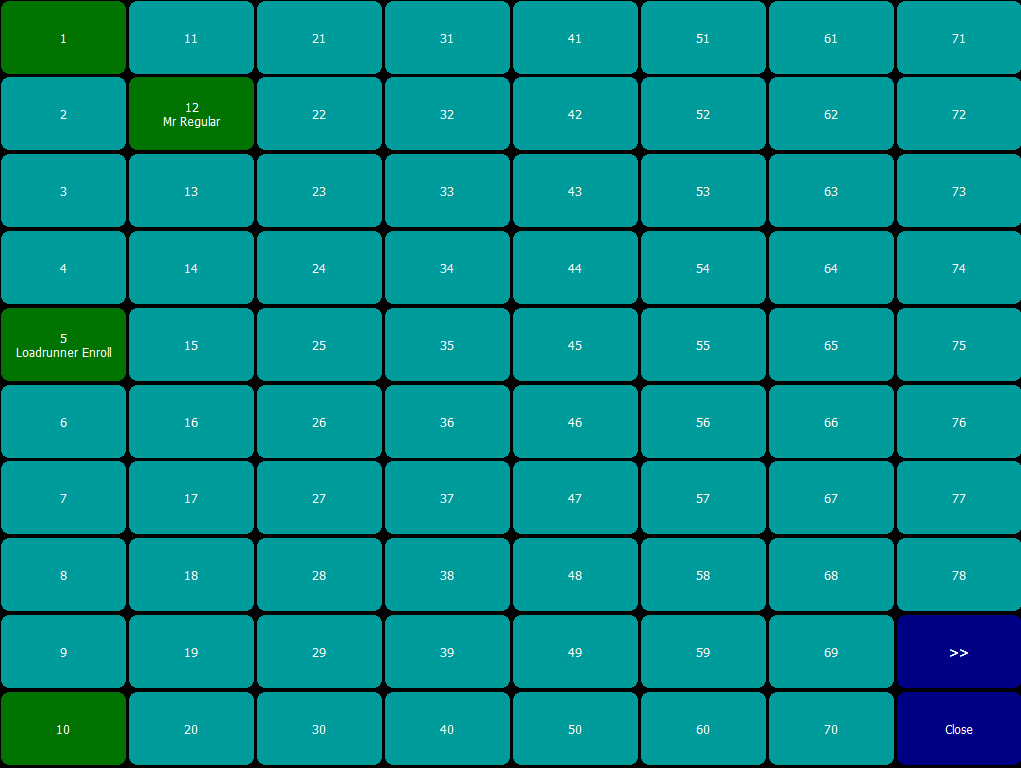
Guest list first
Occupied tables are displayed first. Empty tables are not displayed.
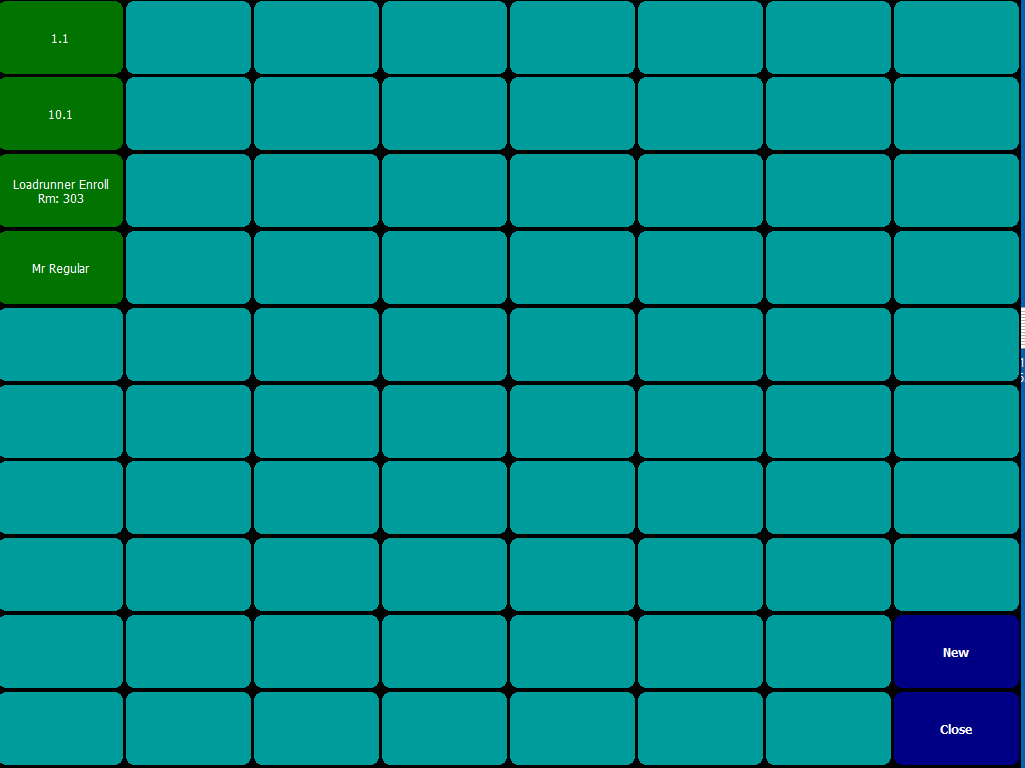
Show table numbers
In addition to the name/room number the table numbers are displayed.